Choose a trigger
Every way an automation can start, and how to set up keywords.
The trigger is the event that starts an automation, like a customer sending a message or placing an order. Each automation has exactly one. Picking the right one, and setting it up carefully, decides who goes through your automation and when.
To add a trigger, open an automation and click Add a trigger. Choosing another trigger later replaces the one you have.
Triggers
| Trigger | Starts when |
|---|---|
| User sends message | A customer sends any message. |
| Contains keyword | A customer's message contains one of your keywords. |
| Form response received | A customer submits one of your WhatsApp forms. |
| Thank you page widget | A customer opts in through your Shopify Thank you page widget. |
| Shopify checkout abandoned | A customer starts a checkout and doesn't finish it. |
| Shopify order confirmed | A customer places an order. |
| Shopify order shipped | An order is shipped. |
| Shopify order cancelled | An order is cancelled. |
| Shopify order refunded | A refund is issued. |
| Shopify new customer | A customer is created in your store. |
| Shopify customer tagged | A tag is added to a customer in your store. |
| Calendly meeting booked | Someone books a meeting. |
| Calendly meeting rescheduled | A meeting is moved to a new time. |
| Calendly meeting canceled | A meeting is cancelled. |
| Calendly no-show | An invitee is marked as a no-show. |
| Zapier webhook received | One of your Zaps sends data to ChatReach. |
The Shopify, Calendly and Zapier triggers work once that integration is connected. For each of them, choose the store or account to listen to, and the number to send from under Send from.
Shopify triggers need an existing contact
Shopify triggers only start for customers who are already a contact in ChatReach, matched by phone number. Calendly and Zapier create the contact if it doesn't exist yet.
Reply to keywords
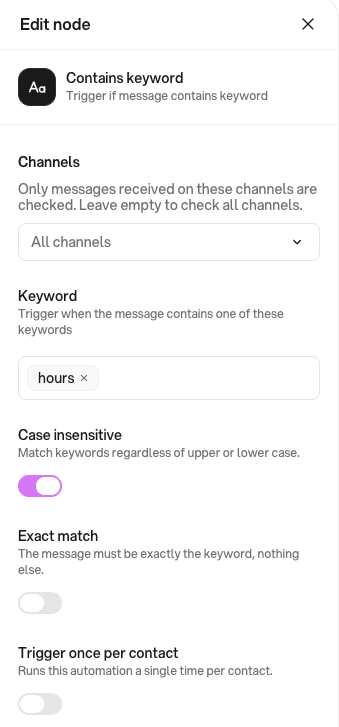
Contains keyword is the easiest way to answer common questions automatically, like opening hours, prices or a discount code.
- Channels: the WhatsApp numbers to listen to. Leave it empty to listen to all of them.
- Keyword: type a keyword and press Enter or a comma. Add as many as you like. A message only has to match one of them.
- Case insensitive: turn this on so capital letters don't matter. Without it, "Hours" doesn't match the keyword "hours".
- Exact match: turn this on when the message must be the keyword and nothing else.
Here's what matches the keyword "sale" with each setting:
| Customer's message | Default | Case insensitive | Exact match |
|---|---|---|---|
| sale | Yes | Yes | Yes |
| Is the sale still on? | Yes | Yes | No |
| SALE | No | Yes | No |
| wholesale prices | Yes | Yes | No |
Without Exact match, the keyword can appear anywhere in the message, even inside another word, as "wholesale" shows. For short keywords, turn on Exact match, or pick a word that's unlikely to appear by accident.
Share a link or QR code
To get customers to send your keyword, click Share at the top of the builder and choose Generate WhatsApp link or Generate QR code. Pick the number under Channel, enter your keyword under Keyword (optional), and click Generate my link or Generate QR code. When a customer opens the link or scans the code, WhatsApp opens with your keyword already typed in.
Run an automation once per contact
User sends message, Contains keyword and Form response received have a Trigger once per contact setting. Turn it on for things a customer should only get once, like a welcome message. After a contact has gone through the automation, it won't start for them again, not even months later.
Without it, the automation starts every time the trigger happens. A customer who sends your keyword three times gets your reply three times.
When more than one automation matches
If two active automations both react to the same message, for example two keyword automations that share a keyword, both of them run. ChatReach doesn't pick one. Keep keywords unique across your automations, and use User sends message carefully, because it reacts to every message on its channels.
Related guides
- Build your first automation
- Add messages, actions and logic: what happens after the trigger.
Still need help?
Our team is happy to help.