Manage your automations and runs
Turn automations on and off, organize them, and see who went through them.
Once you have a few automations, you'll want to see which ones are running, tidy them up, and check what happened for a particular customer. All of that starts on Automation > Overview.
Your automations
The overview lists every automation with its Status, its number of Runs, and when it was Last updated. Click a name to open it in the builder.
| Status | What it means |
|---|---|
| Draft | Saved, but never turned on. It doesn't run. |
| Active | Turned on. It runs every time its trigger happens. |
| Inactive | Turned off. It doesn't start for new customers. |
Turn an automation on or off
Open the automation and use the toggle at the top. To turn it on, switch it to Active and click Publish. To turn it off, switch it to Inactive and click Save.
Turning an automation off stops it from starting for new customers. Customers who are already partway through it, for example waiting on a Smart delay, still finish it.
Edit an active automation
You can change an automation while it's Active. Changes are saved automatically and apply straight away, also to customers who are partway through it. If you remove a step that someone is waiting on, they stop there.
For bigger changes, it's safer to work on a copy: duplicate the automation, change the copy, then turn off the old one and publish the new one.
Duplicate, organize and delete
Open the menu at the end of a row for these options:
- Duplicate makes a copy as a Draft, so you can try changes without touching the original.
- Add to folder moves the automation into a folder. Click Create folder on the overview to make one.
- Delete removes the automation.
To act on several automations at once, select them with the checkboxes.
See who went through an automation
Every time an automation starts for a contact, that's a run. Click the number in the Runs column, or choose View runs from the ⋯ menu in the builder.
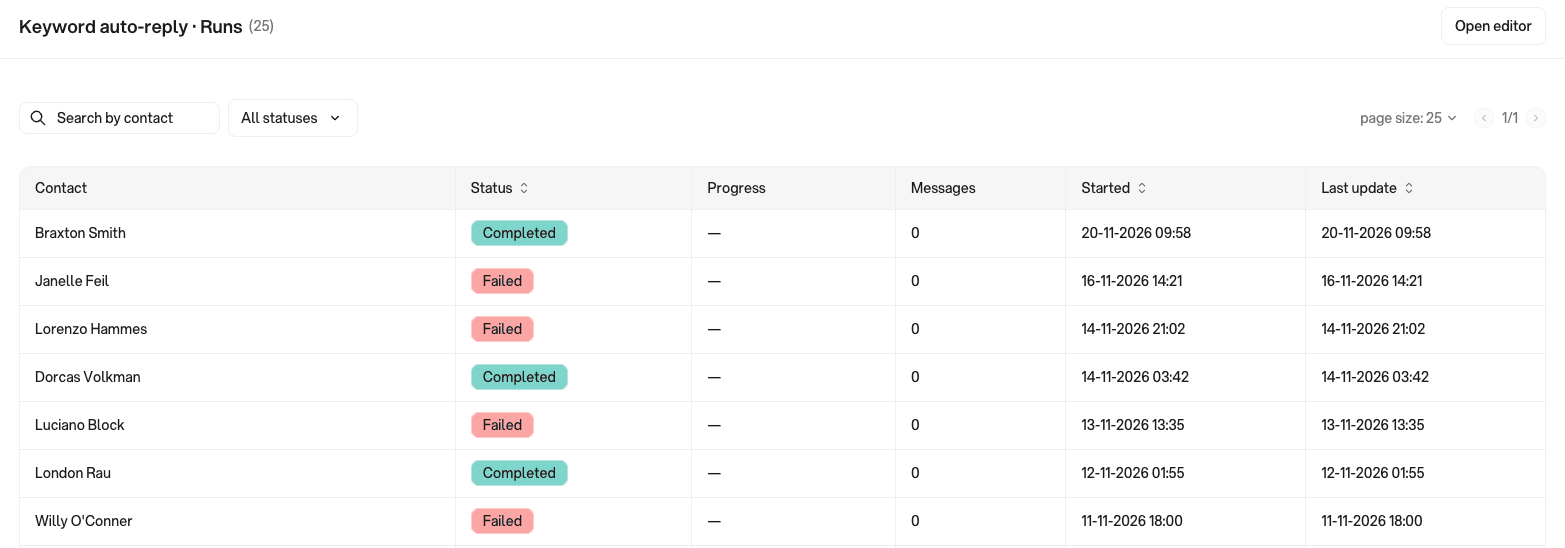
| Status | What it means |
|---|---|
| Pending | The run is about to start. |
| Running | The contact is going through the automation, or waiting on a delay. |
| Completed | The run has ended. |
| Failed | Something went wrong and the run stopped. |
Progress shows how many steps were processed, like "3 of 5 steps". A run also counts as Completed when the contact stopped early, for example at a Condition they didn't match. That's why a completed run can show fewer steps than the automation has.
Click a run to see its Run details: the contact, the steps processed, the steps that failed, and the messages that were sent.
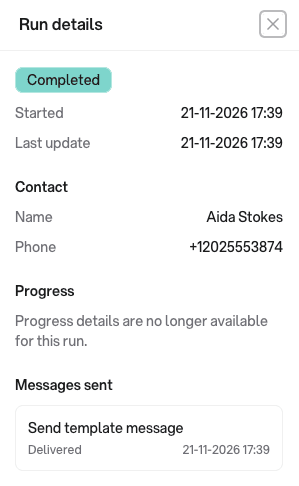
If a run shows Stopped: messaging limit reached, your number reached its messaging limit: the number of different people it can message in 24 hours when they haven't messaged you first. See Messaging limit.
Related guides
- Build your first automation
- Troubleshooting: what to do when a run didn't go as expected.
Still need help?
Our team is happy to help.