Create a message template
Write a reusable WhatsApp message and send it to Meta for approval.
A message template is a message you write once and send many times, like an order update or a promotion. WhatsApp asks you to use one whenever you start a conversation, or when someone hasn't messaged you in the last 24 hours. Every template is reviewed by Meta before you can use it, so customers only get messages that follow WhatsApp's rules.
In ChatReach, message templates are called chat templates. Once one is approved, you can use it in campaigns, and in automations with the Send template step. Creating one takes about five minutes, and Meta usually reviews it within a few minutes, though it can take up to 24 hours.
What you'll need
- A connected WhatsApp number. Templates belong to the number's WhatsApp Business account. If you haven't connected one yet, start with Connect a phone number.
- The message you want to send. Write it out first if you can. It makes the form quicker to fill in.
Create the template
Name your template
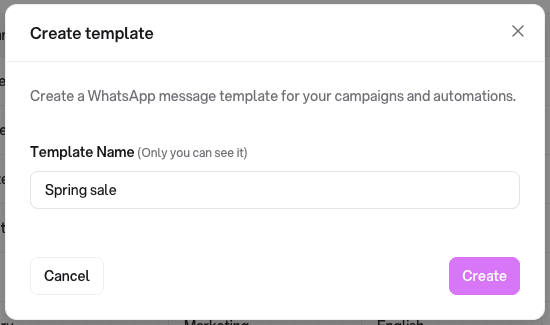
Go to Campaigns > Chat Templates and click Create template. Give it a name, such as "Summer sale", and click Create.
Only you and your team see the name. Each template needs its own name, so pick one that says what the message is for.
Choose a category and type
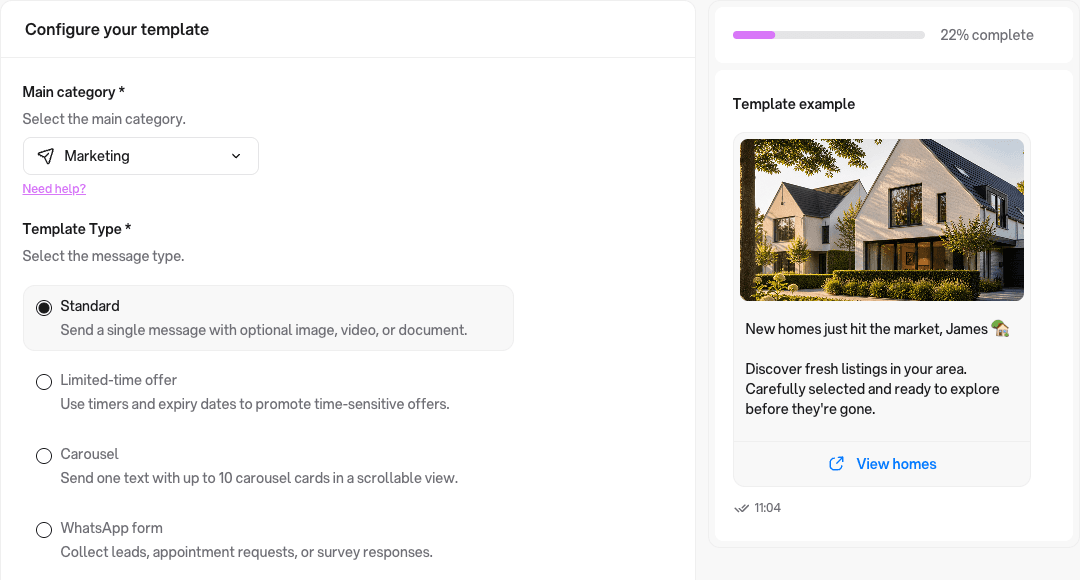
Under Main category, choose Marketing or Utility. Then pick a Template Type and click Next.
| Category | Use it for |
|---|---|
| Marketing | Offers, announcements and other messages that promote your business. |
| Utility | Updates a customer expects, such as an order confirmation or a shipping update. |
Not sure which one fits? Choose a template category and type explains them in more detail.
Pick a number and language
Under Number & Language, choose the WhatsApp number that will send the template and the Language it's written in.
The template only works for that number's WhatsApp Business account. If you send messages in more than one language, create a template for each language.
Write your message
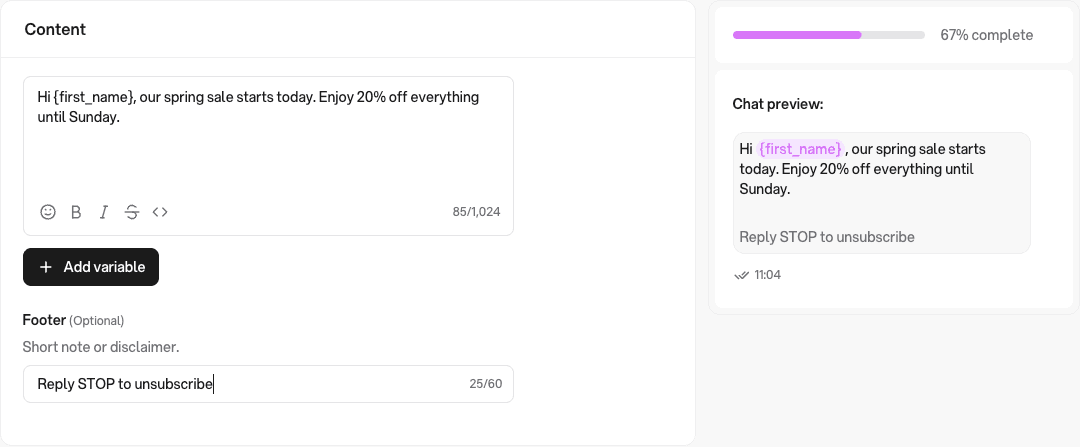
In Content, write your message:
- Header (optional): a short line of text, or an Image, Video, Document or Location that appears at the top.
- Message content: the main text. This is the only part you have to fill in.
- Footer (optional): a short note or disclaimer, like "Reply STOP to unsubscribe".
The preview on the right shows how the message will look in WhatsApp.
Add buttons
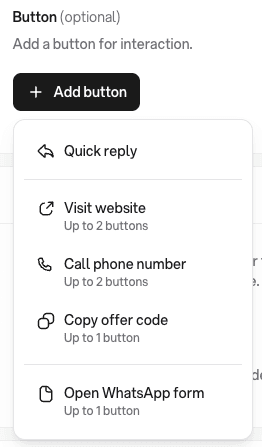
Under Buttons, click Add button to add buttons customers can tap to respond. This is optional.
| Button | What it does |
|---|---|
| Quick reply | Sends a short reply back to you, like "Yes, I'm interested". |
| Visit website | Opens a link. You can add up to 2. |
| Call phone number | Calls a number you choose. You can add up to 2. |
| Copy offer code | Copies a discount code for the customer. You can add 1. |
| Open WhatsApp form | Opens one of your WhatsApp forms. You can add 1. |
A template can have up to 10 buttons in total. If you add more than 3, WhatsApp shows them in a list.
Set a validity period and folder
Under Message validity period, you can turn on Set a custom validity period. If WhatsApp can't deliver the message within that time, for example because the customer's phone is off, the message expires. Expired messages aren't sent and aren't charged. This is handy for time-sensitive messages, like a one-day sale.
Under Organize, you can put the template in a folder, or click Create new folder to make one.
Submit it for review
Check the preview, then click Submit for review. WhatsApp reviews the template, and you'll see Template created when it has been sent.
Not ready yet? Click Save draft instead. You can come back to it later.
Check it before you submit
You can't change a template once it's submitted. If you need to make a change after that, create a new template. Drafts can be changed as often as you like.
Personalize your message with variables
Variables fill in details for each customer, so one template can greet everyone by name. Click Add variable while you write and choose what to insert, such as the contact's first name. It shows up in your text as {first_name}.
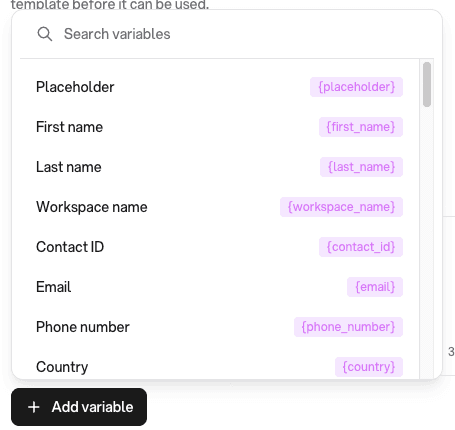
You can use details from your contacts, including your own custom fields. When Shopify or Calendly is connected, you can also use details like an order number or a booking time.
We add example values for Meta's review automatically, so you don't need to provide them yourself.
Not sure what should be a variable and what should stay fixed? Thinking in templates explains it with examples.
A few tips that help your template get approved:
- Don't start or end the message with a variable. Put some text before and after it.
- Don't use too many variables. Keep enough normal text that Meta can understand what the message is about.
- The header can have only one variable.
Edit or delete a template
To see a template, open the menu at the end of its row and click Show. While a template is a Draft, you can also click Edit.
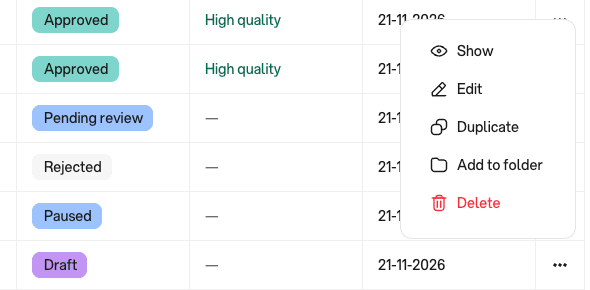
To delete a template, open the same menu and click Delete. It's deleted right away and removed from WhatsApp too, so make sure it isn't used in an active campaign or automation first.
Reusing a name
After you delete an approved template, WhatsApp doesn't let you use the same name again for 30 days. Pick a new name if you're replacing it.
Organize templates in folders
Folders keep things tidy once you have a lot of templates. Click Create folder on the Chat templates page to make one. To move a template, open the menu at the end of its row and click Add to folder.
Related guides
- Thinking in templates: when to use a variable and when to create a new template.
- Understand template status and quality: what happens after you submit.
- Troubleshooting: what to do if your template is rejected.
- Add messages, actions and logic: send a template from an automation.
Still need help?
Our team is happy to help.