Connect a phone number
Link a new or existing WhatsApp number to ChatReach through Meta.
Connecting your number is what makes everything else in ChatReach work. It usually takes just a few minutes.
WhatsApp is owned by Meta, so the connection happens through Meta too. ChatReach first asks a few short questions about your number. Then a Meta window opens, where you log in and give ChatReach permission to send and receive messages for that number.
What you'll need
Getting these ready first makes the whole thing go a lot more smoothly:
- Your Facebook or Meta Business login. Use the account you normally use for your business. You'll choose an existing Meta business portfolio during setup, or create a new one if you don't have one yet.
- A phone number you own. It needs a country code and area code. Short codes don't work.
- Access to that number right now. Meta checks that the number is yours by sending a code by text message or phone call, so keep the phone close.
- The name customers should see. You'll enter a display name, which can appear in WhatsApp in place of your number.
Can you use a landline?
Often, yes. The number only has to be able to receive a text message or a voice call. If it can't receive texts, choose the phone call option when Meta asks how to send your code.
Connect your number
Choose your number type
Pick the option that fits, then click Continue.
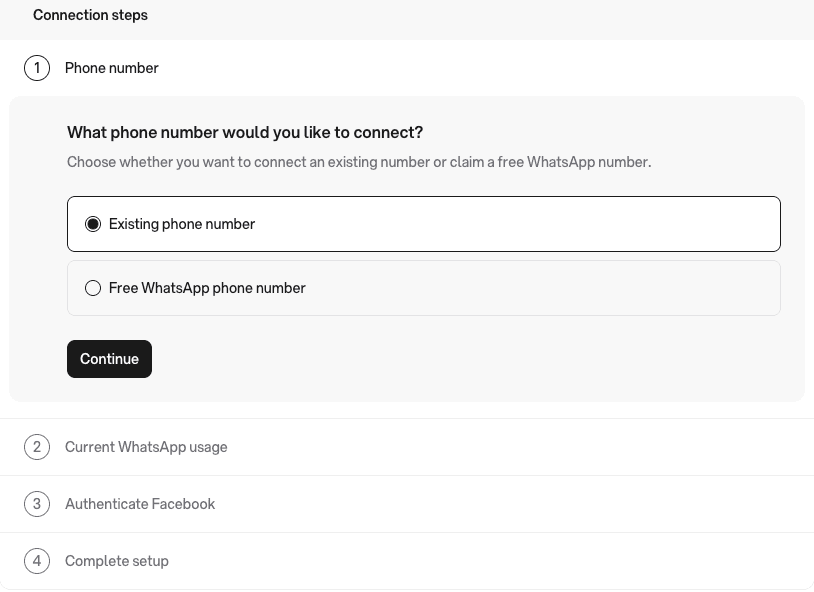
Existing phone number is the right choice for most businesses. Your customers already know this number, so it makes sense to keep using it.
Free WhatsApp phone number is handy if you don't have a number available. Meta shows this option in its own window when your business is eligible. These are US numbers starting with +1 555. They need an approved display name before you can send messages, and they can't be moved to another WhatsApp account later, so we recommend your own number if you plan to use it for the long term.
Tell us how the number is used today
If you chose an existing number, ChatReach asks where it's currently in use. WhatsApp only allows a number to be registered in one place, so this tells us whether you need to do something first.
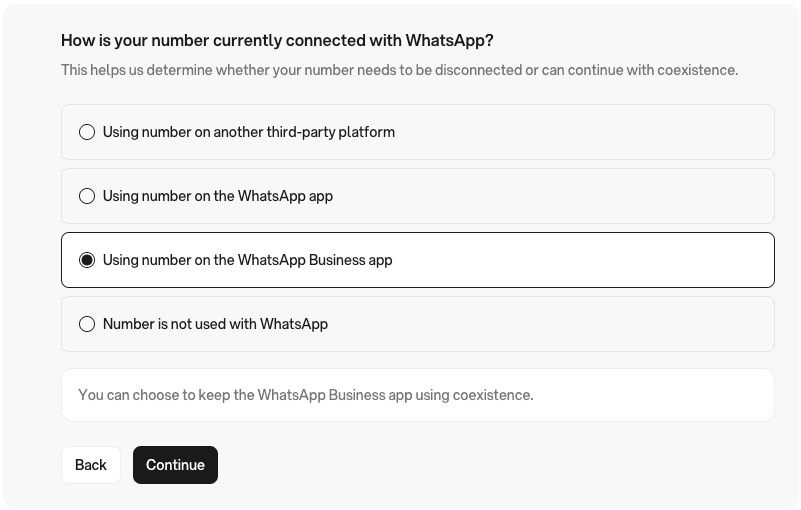
| If your number is... | Here's what to do |
|---|---|
| Using number on another third-party platform | Ask your current provider to disconnect the number, and wait until they confirm it's done. Then continue. |
| Using number on the WhatsApp app | Disconnect the number first by deleting the WhatsApp account on it. Save any chats you want to keep before you do, because they won't come with you. |
| Using number on the WhatsApp Business app | Good news: you may not have to give up the app. The next step explains your choice. |
| Number is not used with WhatsApp | Nothing to do. You're ready to connect. |
Don't skip disconnecting. Meta won't register a number that's still in use on WhatsApp somewhere else.
Decide whether to keep the WhatsApp Business app
You'll only see this step if your number is on the WhatsApp Business app. You can keep using the app next to ChatReach, which is called coexistence, or move over to ChatReach completely.
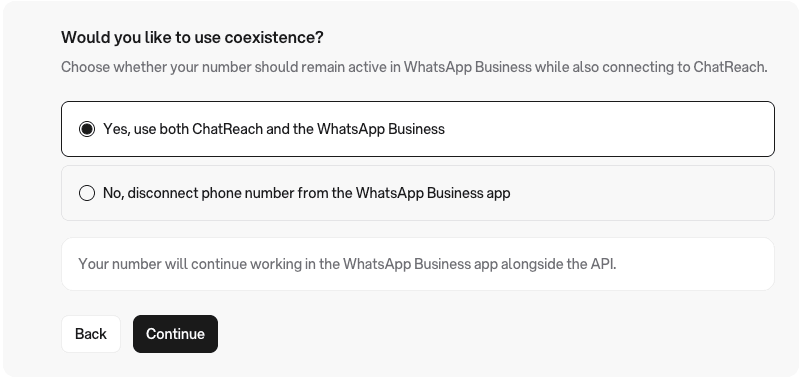
- Yes, use both ChatReach and the WhatsApp Business: your number keeps working in the app, and your recent chats and contacts come along. Read Keep using the WhatsApp Business app to see what changes.
- No, disconnect phone number from the WhatsApp Business app: your number is fully migrated to ChatReach and removed from the app.
Not sure? If you like answering quick messages from your phone, coexistence is usually the friendlier choice.
Log in with Facebook
A Meta window opens automatically. If it doesn't appear, click Login with Facebook. Your browser may have blocked the pop-up, so check for a notice near the address bar.
The steps in the window can vary a little, but you'll generally be asked to:
- Log in with your Facebook or Meta Business account.
- Review what ChatReach will be allowed to access.
- Enter your phone number, or select one that's already there.
- Choose to receive a code by text message or phone call, then enter it.
- Choose your business portfolio and WhatsApp account, or create new ones.
- Review the permissions and click Finish.
Choosing to keep the WhatsApp Business app? The window will ask you to scan a QR code with the app instead of entering a code the usual way. The coexistence guide walks through it.
Keep the Meta window open until you reach the end. If you close it early, the connection won't be finished and you'll need to start this step again.
Finish the setup
That's the hard part done. ChatReach completes the registration in the background, which may take a minute, and we'll notify you as soon as your number is ready to use.
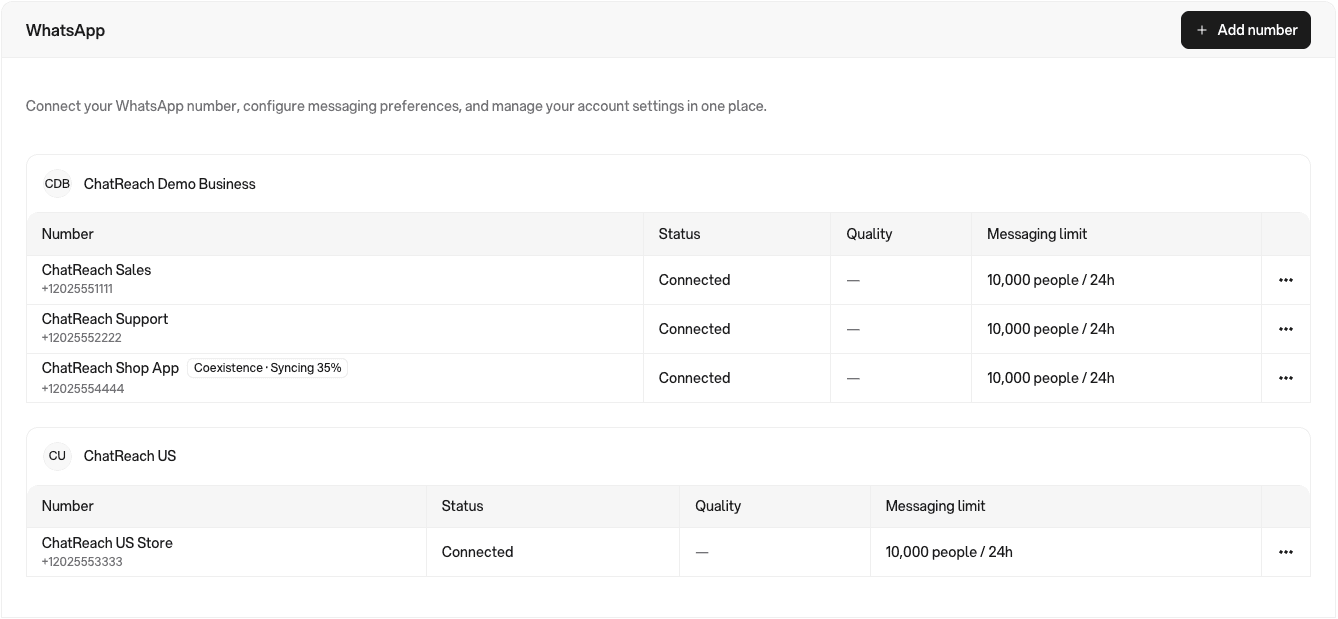
Click Go back to return to your list of numbers. When the number shows the status Connected, you're ready to send and receive messages.
What's next?
Take a moment to look at your number's details, where you can add a profile picture and bio that customers see in WhatsApp.
Something not working?
Most connection problems have a simple fix. See Troubleshooting for the common ones.
Still need help?
Our team is happy to help.