Keep using the WhatsApp Business app
Use the same number in ChatReach and the WhatsApp Business app.
If you already run your business from the WhatsApp Business app, you don't have to choose between the app and ChatReach. With a feature called coexistence, one number can work in both.
It's a nice setup for small teams: you can still reply from your phone when you're on the go, while your team handles conversations together in ChatReach. Conversations with individual customers stay in sync, so a message sent in one place shows up in the other.
Before you start
- Update the app. You need WhatsApp Business app version 2.24.17 or newer. Check the App Store or Google Play for updates.
- Keep your phone with you. You'll need it to scan a QR code and confirm a few things in the app.
- Know what changes. A few features work differently once you're connected, so have a look at the table below first.
Turn on coexistence
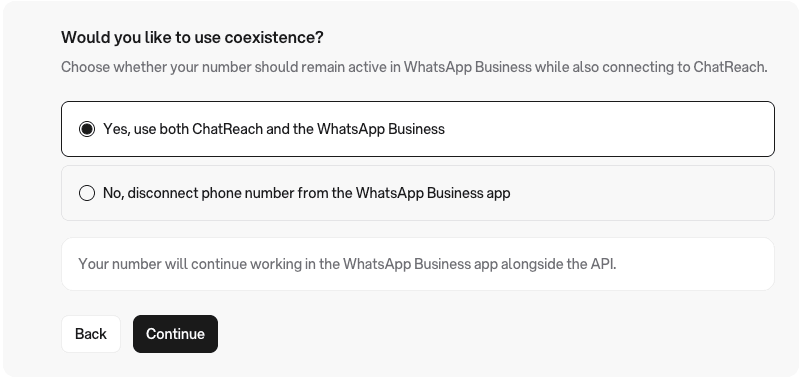
Coexistence is part of the normal connection flow, so there's nothing separate to install.
Start connecting your number
Follow Connect a phone number and choose Existing phone number, then Using number on the WhatsApp Business app.
Complete the steps with Meta
In the Meta window, enter your number and scan the QR code from inside the WhatsApp Business app on your phone. Meta also sends a message to your WhatsApp with a link to the QR code, which helps if you only have one device.
Share your chat history
The app asks whether you want to share your chat history with ChatReach. Tap Confirm if you'd like your past conversations to appear in your inbox. If you decline, only your contacts and new messages will show up.
Sync your contacts and chat history
After you connect, ChatReach brings in your contacts and up to 6 months of chat history from the app. This can take anywhere from a few minutes to a few hours, depending on how much there is. Group chats aren't included.
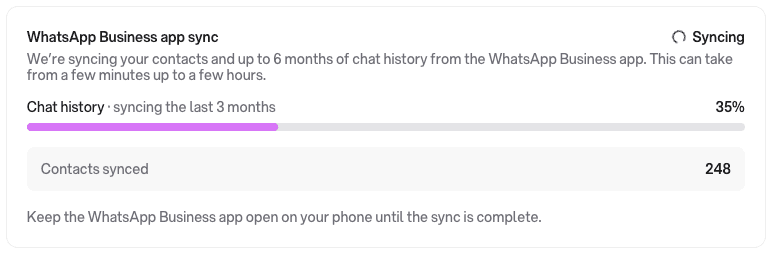
Keep the WhatsApp Business app open on your phone until the sync is complete.
You don't have to watch it happen. You can leave the page and we'll notify you when it's done. To check in later, open the number from Settings > WhatsApp.
| Sync status | What it means |
|---|---|
| Waiting to start | Everything's connected and the sync is about to begin. |
| Syncing | Your contacts and chat history are being brought in. |
| Completed | All done. Your contacts and chats are in ChatReach. |
| History not shared | Chat history sharing was declined in the WhatsApp Business app, so only your contacts and new messages appear in ChatReach. |
| Failed | Your number is connected, but not all contacts and chat history could be synced. Email [email protected] and we'll take a look. |
What changes in the app
Most things keep working as usual, but WhatsApp turns a few features off or moves them to a read-only state once a number is connected this way.
| Feature | After connecting |
|---|---|
| Chats with individual customers | Keep working and stay in sync with ChatReach. |
| Group chats | Keep working in the app, but don't appear in ChatReach. |
| Disappearing messages | Turned off for chats with individual customers. |
| View once messages | Turned off for chats with individual customers. |
| Live location | Turned off for chats with individual customers. |
| Broadcast lists | Existing lists become read-only, and you can't create new ones. |
| Voice and video calls | Stay in the app. |
| Linked devices | Are signed out. You can link supported devices again afterwards. |
Open the app every now and then
Meta can disconnect a number when the phone running the app has been inactive for around 14 days. Opening the app regularly keeps everything connected.
Still need help?
Our team is happy to help.