Understand your phone numbers
What status, quality and messaging limit mean on the WhatsApp page.
The WhatsApp page in ChatReach shows how each of your numbers is doing at a glance. Here's how to read it, and when you should pay attention.
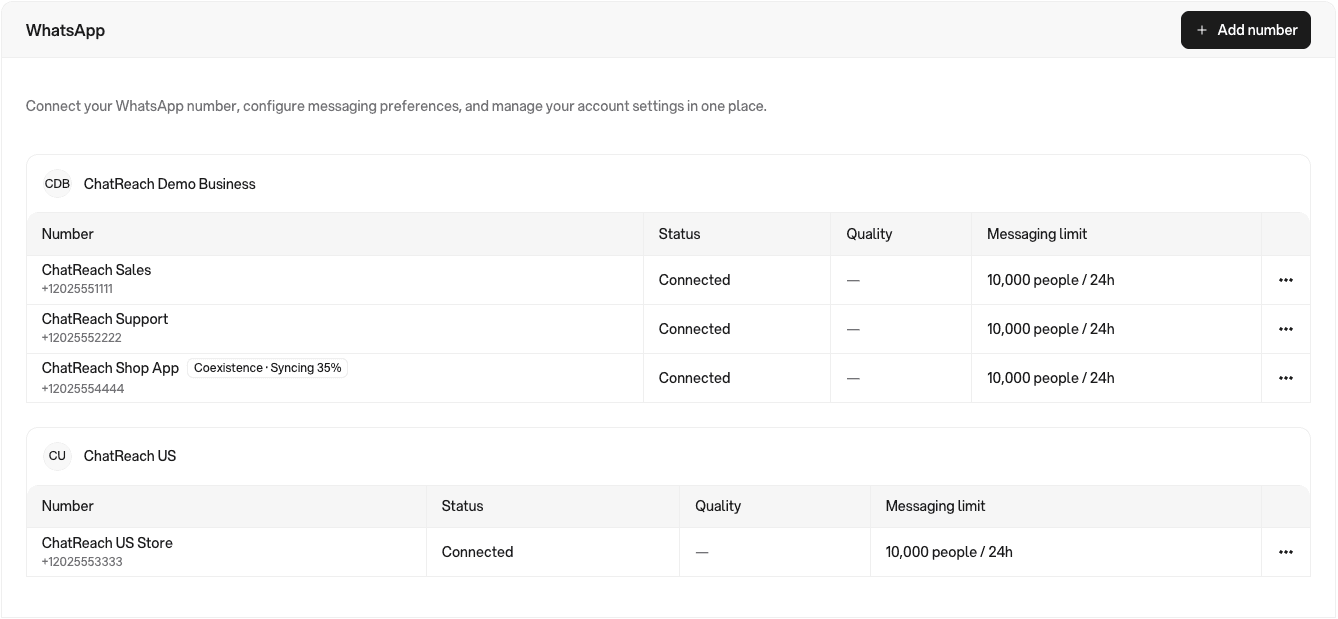
Go to Settings > WhatsApp to see your connected numbers, grouped by WhatsApp Business account.
Status
Status tells you whether a number is working. The one you want to see is Connected, which means the number can send and receive messages.
If you see anything else, or messages have stopped coming through, have a look at Troubleshooting.
A number that's using the WhatsApp Business app at the same time also has a small Coexistence label next to its name, which shows the sync progress while your history is being brought in.
Quality
Quality is the rating of your number. It's based on how people respond to the messages you send, so think of it as a signal of whether your messages are welcome.
| Rating | What to do |
|---|---|
| High | Nothing. Keep doing what you're doing. |
| Medium | Worth a look. Check whether recent messages were relevant to the people who received them. |
| Low | Take action soon. Review who you're messaging and what you're sending before your next campaign. |
| Not available, Unknown or — | There's no rating to show yet. This is normal for a number that's new or hasn't sent much. |
Each message template also has its own quality rating. See Understand template status and quality.
The best way to keep your rating healthy is simple: message people who've asked to hear from you, keep it relevant, and make it easy for them to opt out.
Messaging limit
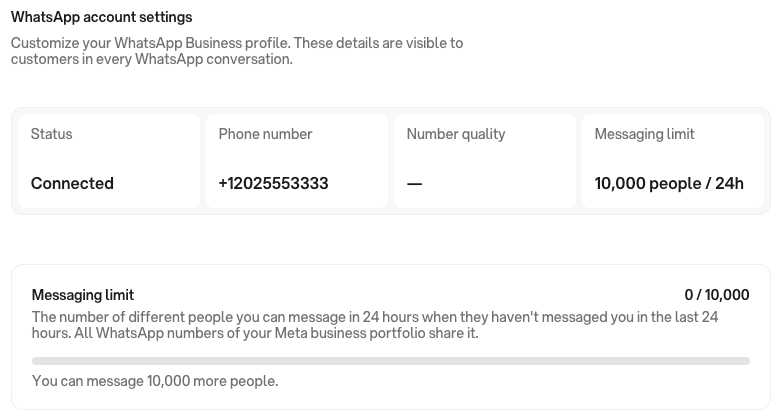
The messaging limit is the number of different people you can message in 24 hours when they haven't messaged you in the last 24 hours. It's set by Meta, and it's there to protect WhatsApp users from spam.
A few things make this easier to work with:
- Replies don't use it up. When a customer messages you first, you can answer them without it counting.
- It counts people, not messages. Sending three messages to the same person counts as one.
- It's shared. All WhatsApp numbers in your Meta business portfolio use the same limit.
- It can grow. New portfolios start at 250 people. Verifying your business with Meta raises it to 2,000, and from there it can increase to 10,000, 100,000 and unlimited as you steadily send good-quality messages.
Open a number to see how much of the limit you've used so far.
Change a number's details
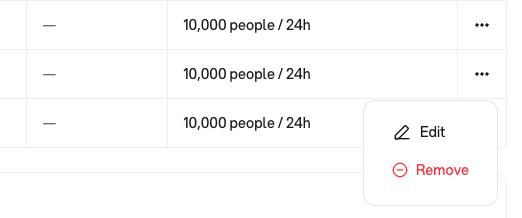
Each number has a page where you can update the profile customers see in WhatsApp, like its picture and bio. Open the menu at the end of the row and click Edit.
Go to Meta
Each business account has shortcuts to WhatsApp Business Manager and your payment settings at Meta, in case you need to manage something on their side.
Still need help?
Our team is happy to help.